Computer Use
computer-use is a worker process built to drive a real desktop:
- Mouse and keyboard
- Screenshots
- Clipboard
- Open windows
- The accessibility tree
It runs as a process separate from aiod, on any host with a desktop. Examples:
- An Ubuntu desktop
- A VM with Xvfb or Xvnc
- A Windows host with an interactive logon session
aiod proxies its API. It does not touch the desktop itself. That process boundary keeps desktop control optional: aiod runs the same without a desktop present, and reaches one wherever computer-use is running.
The desktop plane is v2-only, under /v2/computer/*.
v1 keeps two aliases for 1.x clients:
POST /v1/browser/actionsPOST /v1/display/record
The routes side by side are in Migration from 1.x.
The first part of this page is the action reference an agent's tools are built on. The second covers the viewers a person uses to watch or take over the same desktop. Browser API covers CDP-based page automation instead, and Computer Use examples walks one desktop task end to end.
For agent tools
How the two processes connect
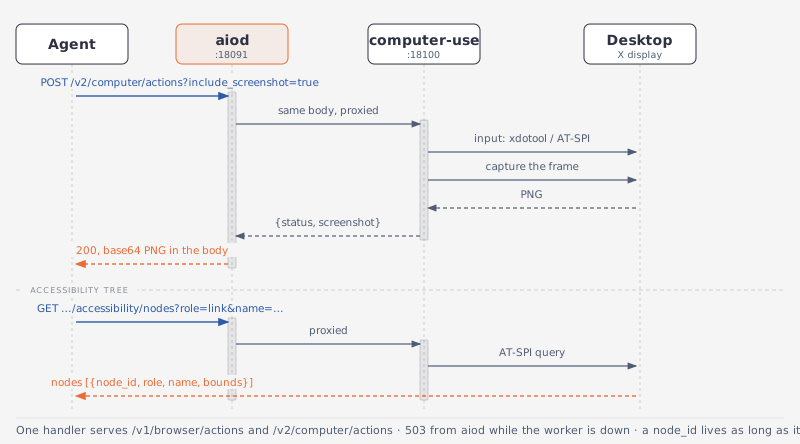
The worker binds AIO_COMPUTER_USE_LISTEN (default 0.0.0.0:18100). aiod reaches it at AIO_COMPUTER_USE_URL (default http://127.0.0.1:18100) and proxies the desktop routes opaquely. When the worker is not running, the computer routes answer 503:
Prerequisites
Linux: a reachable X11 display. Set DISPLAY, and XAUTHORITY if the display needs cookie authentication. GET /v2/computer/info reports what it found in display and xauthority.
Windows: an interactive logon session. aiod can run as a Session 0 SCM service; computer-use must run in the interactive session to see the desktop and inject input.
Start the worker
computer-use ships with every aiod release; see Releases. On Linux the install script installs both:
On Windows download https://aio-static.tos-cn-beijing.volces.com/latest/windows-x86_64/computer-use.exe.
It takes no flags and reads only environment variables: DISPLAY and XAUTHORITY pick the display, AIO_COMPUTER_USE_LISTEN sets the listen address.
Linux:
supervisord, as the Computer image runs it:
Windows: computer-use.exe cannot run as a service; register it as a logon-triggered scheduled task, see Windows.
Check available capabilities
GET /v2/computer/info reports the display the worker found and what it can do on it:
data is:
available— whether the worker reached a displaydisplay— the display the worker foundxauthority— theXAUTHORITYit foundscreen_resolution—{width, height}capabilities—{screenshot, actions, clipboard, recording}warnings— problems the probe found
v1 has no desktop info route. The sandbox capability probe reports the plane instead:
data.computer is:
status—ready,degraded, orabsentdisplay,resolution— what the worker foundscreenshot,actions,clipboard,recording,accessibility— one flag per operationaccessibility_backend—atspi,uia, ornullwhere none is compiled inprovider,missing,warnings— how it was found, and what is not there
When no worker is running, the response is:
When you need the availability and the XAUTHORITY the worker itself reports, switch to v2:
Take a screenshot
The response body is the image itself:
The current desktop as a PNG, including all windows, the taskbar, and dialogs. The response headers carry the geometry — x-image-width, x-image-height, x-screen-width, x-screen-height.
v1 has no desktop screenshot route. The post-action frame is the way in, and WAIT is the action that changes nothing:
screenshot in the response is the same desktop capture, base64 PNG. The Python SDK sends no query string on this route, so a frame taken this way needs the HTTP call. GET /v1/browser/screenshot is a different thing: it captures the browser page over CDP, not the desktop.
When you want the capture as a PNG body, with no action attached, switch to v2:
Act
One action per request, in screen coordinates. With ?include_screenshot=true the response also carries a screenshot taken after the action:
The alias and the v2 route are one handler: same body, same response.
The Python SDK sends one typed action per call:
Its action union covers the mouse, the keyboard, and WAIT. The clipboard, window, and node actions below go over HTTP on the same route, as does a post-action screenshot.
The action body is the same in v1 and v2. For example, click screen coordinates (640, 400):
The body describes the action directly, and action_type selects which action to run:
durationis in seconds;keysis a list,["ctrl", "c"]for copy.- A
window_idcomes from the window list, anode_idfrom the accessibility tree; both are below. - Two bounds hold on every action, single or batched: a
WAITasks for at most 10 s, and aSCROLLfor at most 100 notches per axis. TYPINGtypes ASCII text as keystrokes. Text with other characters goes through the clipboard (use_clipboard, defaulttrue), which replaces whatever the clipboard held; withuse_clipboard: falsesuch text is refused with 400, since keystrokes would drop the characters. Clipboard text is pasted with Shift+Insert, which terminals and GTK or Chromium windows both accept.- A successful
PRESS,HOTKEY, orTYPINGmeans the input reached the focused window, not that the application acted on it. Take a screenshot to confirm. - The full per-type schema is in the API Reference.
The response carries status and action_performed, plus the post-action frame as base64 PNG when one was asked for. If capturing it fails, that shows up as screenshot_error next to the action result, not as a failed request: the action already happened.
A Windows secure desktop (a UAC prompt, the lock screen) refuses input; see Windows.
Batch several actions
A batch runs its actions in order in one request, and nothing else touches the display until it finishes:
include_screenshot is a body field here, not a query parameter. At most 50 actions per batch, and their WAIT actions total at most 20 s.
data is:
performed— the actions that ran, in orderfailed_index,error— which action stopped the batch, and why; everything before it ranstatus,reason—deniedand its machine-readable cause, when the host refused the inputscreenshot,screenshot_error— the frame after the last action that ran
When a sequence has to run without anything else touching the display, switch to v2:
Run your own automation
The desktop is an ordinary X display and every command runs with DISPLAY set, so a script that drives the screen itself runs through POST /v2/commands (/v1/bash/exec on v1) against the same desktop the actions above use. The Computer image ships xdotool; pyautogui is one pip install pyautogui away:
Read the pointer, clipboard, and windows
The window list:
A window_id is the native window handle, not an index into the listing. It stays valid while the window exists; acting on a closed window fails instead of hitting whatever took its place.
When you need the window list, the pointer position, or the clipboard text, switch to v2:
Act through the accessibility tree
Two routes read the desktop's accessibility tree:
GET /v2/computer/accessibilityreturns the full tree.GET /v2/computer/accessibility/nodessearches that tree as a flat list.
Both accept queries such as ?role=button&name=Sign+in and take the same fields:
Out-of-range values are clamped, not rejected, and role and name are compared case-insensitively in every mode. A truncated flag marks an answer that hit one of those budgets, so a missing node is not evidence the node is absent. On nodes, ?node_id= resolves one handle and ignores the search parameters.
A returned node_id stays valid as long as the element exists, across snapshots. It turns 404 once the element is gone — its window closed, or its application restarted.
Each node carries node_id, role, and name, plus bounds, states, value, and actions, the action names the element advertises:
Put that node_id in an action body to act on the element instead of pixel coordinates:
Three node actions:
NODE_INVOKEwithoutactionruns the node's first advertised action; with one it runs that action, and a409lists what the element advertises instead.NODE_FOCUSonly moves focus, so aTYPINGaction can follow.NODE_SET_VALUEtakesvalueand writes it into the element's text or value; an element with neither answers409.
When you want to act on an element by role and name instead of pixel coordinates, switch to v2:
Backends by platform: Windows uses UI Automation (UIA), built into the OS with nothing to install; Linux uses AT-SPI2 (docs).
Three things make a Linux desktop readable as a tree:
at-spi2-coreinstalled: it provides theorg.a11y.BusD-Bus service and the bus launcher.- A session D-Bus the worker finds through
DBUS_SESSION_BUS_ADDRESS. - Applications that expose their own tree. GTK and Qt apps do by default; Chromium and Electron need
--force-renderer-accessibility.
The Computer image ships at-spi2-core, starts a session D-Bus, and runs Chromium with that flag.
Errors:
Record the desktop
POST /v2/computer/record records with ffmpeg: action is start, status, or stop.
POST /v1/display/record is the same endpoint: action is start, status, or stop. The Python SDK covers the route and every parameter of it:
Recording uses ffmpeg, and only one recording runs at a time. start takes the capture settings:
save_path is optional; without one the file lands in the temp directory as recording_<timestamp>.mp4. A missing parent directory is created, and one the worker cannot write to is a 400.
data carries:
status—recording,stopped, oridleduration— seconds recorded so farsave_path— where the file is being writtenfile_size_bytes— the size after a stop
Store recordings under a path the File API can reach. Stop recording before tearing down the host, so the file stays playable.
Talking to the worker directly
computer-use also answers on its own port, without going through aiod:
Useful when deploying or health-checking the worker on its own.
Human in the loop
A person steps into the same terminal, browser or desktop the agent is driving: to watch a run, to take over a login or a captcha, to hand the desktop back. Nothing in the daemon changes for that. The viewers are pages the prebuilt images serve through their gateway, and each one attaches to the object the agent already uses:
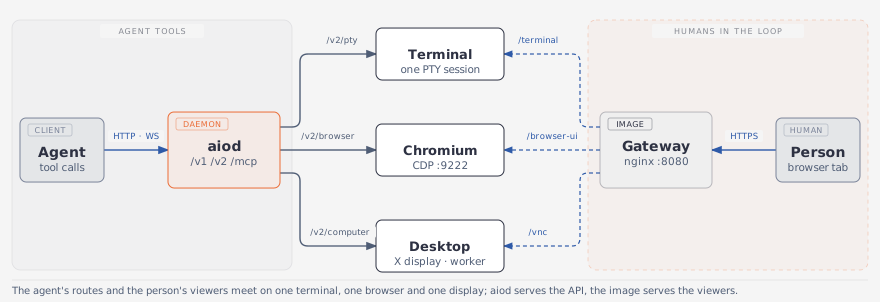
Xvnc is both the X server and the VNC server, so a person's clicks land on the display directly and the worker sees the result in its next screenshot. The daemon serves the API only; aiod alone answers 404 on every path above.
The prebuilt images wire this up. The AIO image runs Xvnc on DISPLAY=:99.0 with openbox and Chromium, and serves noVNC, DevTools and the WebShell. The Computer image sets AIO_DESKTOP=xfce on top of it: an XFCE session takes the display, the computer-use worker starts next to aiod, a session D-Bus serves AT-SPI, and Chromium runs with --force-renderer-accessibility so tab contents appear in the accessibility tree.
Related
- Computer Use examples — one verified run: navigate, follow a link through the tree, observe
- Browser API — CDP-based page automation
- File Operations — fetch recordings and downloads