Browser Use
这个示例从零搭一个小网页:agent 写入页面、启动静态服务器,然后通过 HTTP 反复观察页面、填写姓名、点击链接、读取结果,最后截图。
页面由文件 API 和 command plane 在沙箱中创建,因此整个流程可离线运行,每次结果一致。
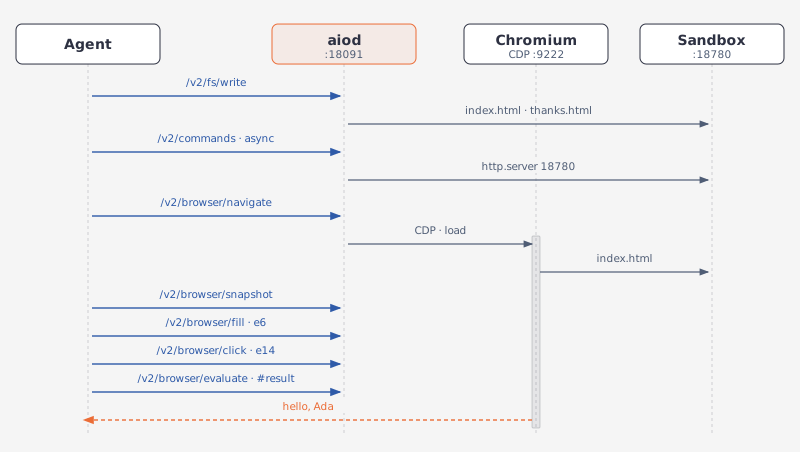
工具包括 navigate、snapshot、fill、click、evaluate 和 screenshot,路由如下:
创建示例页面还需要一次文件写入和一次命令执行。两套接口的请求体完全相同。
要求
GET /v2/sandbox 的 capabilities 中,browser.status 应为 "ready",同时还应包含 files 和 exec。
GET /v1/capabilities 的返回结果中,browser.status 应为 "ready",并且 files 和 exec 也应可用。
browser plane 是 CDP 客户端,因此主机上必须有 Chromium 监听调试端口,默认地址为 127.0.0.1:9222。详见 浏览器 API。
页面由 python3 启动的静态服务器提供,也可以替换为其他静态服务器。选择一个未被占用的端口,下面使用 18780。
各段代码接续同一个脚本,因此会沿用 BASE_URL、第一段创建的客户端和端口。
大多数调用使用 sb.post 或 sb.get,这两个方法会自动取出返回结构中的 data。
如果需要读取完整返回结构(success、message 和状态码)或二进制响应体,请改用 sb.http。
准备可驱动的页面
先通过文件 API 写入两个 HTML 文件,再通过 command plane 启动静态服务器。服务器在后台启动后立即返回,后续可通过响应中的 id 操作该进程:
import time

BASE_URL = "http://127.0.0.1:18091"
PORT = 18780
DIR = "/tmp/webapp"
sb = Aio(BASE_URL)

INDEX_HTML = """<!doctype html>
<title>Greeter</title>
<input id="name" placeholder="Your name">
<button id="greet">Greet</button>
<p id="result"></p>
<a href="/thanks.html">Thanks</a>
<script>
document.getElementById('greet').onclick = () => {
  const name = document.getElementById('name').value;
  setTimeout(() => {
    document.getElementById('result').textContent = 'hello, ' + name;
  }, 300);
};
</script>
"""

THANKS_HTML = """<!doctype html>
<title>Thanks</title>
<p>Thanks!</p>
<a href="/index.html">Back</a>
"""

for name, html in [("index.html", INDEX_HTML), ("thanks.html", THANKS_HTML)]:
    written = sb.post("/v2/fs/write", path=f"{DIR}/{name}", content=html)
    print(written["file"], written["bytes_written"])
# → /tmp/webapp/index.html 398
# → /tmp/webapp/thanks.html 84

serve = sb.post(
    "/v2/commands",
    command=f"python3 -m http.server {PORT} --bind 127.0.0.1 --directory {DIR}",
    mode="async",
)
command = serve["command_id"]
print(serve["status"], command)
# → running aff4cddb-8933-494d-9baf-1f5b3401cfe1


def port_state() -> str:
    probe = (f"python3 -c \"import socket; print('free' if "
             f"socket.socket().connect_ex(('127.0.0.1', {PORT})) else 'in use')\"")
    out = sb.post("/v2/commands", command=probe)
    return out["output"].strip()


while port_state() == "free":
    time.sleep(0.2)
print(port_state())
# → in use
import { writeFileSync } from "node:fs";

const BASE_URL = "http://127.0.0.1:18091";
const PORT = 18780;
const DIR = "/tmp/webapp";
const sb = new Aio(BASE_URL);

const INDEX_HTML = `<!doctype html>
<title>Greeter</title>
<input id="name" placeholder="Your name">
<button id="greet">Greet</button>
<p id="result"></p>
<a href="/thanks.html">Thanks</a>
<script>
document.getElementById('greet').onclick = () => {
  const name = document.getElementById('name').value;
  setTimeout(() => {
    document.getElementById('result').textContent = 'hello, ' + name;
  }, 300);
};
</script>
`;

const THANKS_HTML = `<!doctype html>
<title>Thanks</title>
<p>Thanks!</p>
<a href="/index.html">Back</a>
`;

for (const [name, html] of [["index.html", INDEX_HTML], ["thanks.html", THANKS_HTML]]) {
  const written = await sb.post("/v2/fs/write", {
    path: `${DIR}/${name}`,
    content: html,
  });
  console.log(written.file, written.bytes_written);
}
// → /tmp/webapp/index.html 398
// → /tmp/webapp/thanks.html 84

const serve = await sb.post("/v2/commands", {
  command: `python3 -m http.server ${PORT} --bind 127.0.0.1 --directory ${DIR}`,
  mode: "async",
});
const command = serve.command_id;
console.log(serve.status, command);
// → running 59fbd023-2b2d-4735-b748-40e1eebf5deb

async function portState(): Promise<string> {
  const probe = `python3 -c "import socket; print('free' if `
    + `socket.socket().connect_ex(('127.0.0.1', ${PORT})) else 'in use')"`;
  const out = await sb.post("/v2/commands", { command: probe });
  return out.output.trim();
}

while ((await portState()) === "free") {
  await new Promise((r) => setTimeout(r, 200));
}
console.log(await portState());
// → in use
import time

from agent_sandbox import Sandbox

BASE_URL = "http://127.0.0.1:18091"
PORT = 18780
DIR = "/tmp/webapp"
client = Sandbox(base_url=BASE_URL)
# The 1.x SDK has no snapshot, fill, or ref click, and no file delete; those
# steps go through the shared helper, with the same bodies the v2 tools take.
sb = Aio(BASE_URL)

INDEX_HTML = """<!doctype html>
<title>Greeter</title>
<input id="name" placeholder="Your name">
<button id="greet">Greet</button>
<p id="result"></p>
<a href="/thanks.html">Thanks</a>
<script>
document.getElementById('greet').onclick = () => {
  const name = document.getElementById('name').value;
  setTimeout(() => {
    document.getElementById('result').textContent = 'hello, ' + name;
  }, 300);
};
</script>
"""

THANKS_HTML = """<!doctype html>
<title>Thanks</title>
<p>Thanks!</p>
<a href="/index.html">Back</a>
"""

for name, html in [("index.html", INDEX_HTML), ("thanks.html", THANKS_HTML)]:
    written = client.file.write_file(file=f"{DIR}/{name}", content=html).data
    print(written.file, written.bytes_written)
# → /tmp/webapp/index.html 398
# → /tmp/webapp/thanks.html 84

serve = client.bash.exec(
    command=f"python3 -m http.server {PORT} --bind 127.0.0.1 --directory {DIR}",
    async_mode=True,
).data
session = serve.session_id
print(serve.status, session)
# → running fb118692-a65c-40f7-a8d1-53b469aab28c


def port_state() -> str:
    probe = (f"python3 -c \"import socket; print('free' if "
             f"socket.socket().connect_ex(('127.0.0.1', {PORT})) else 'in use')\"")
    return client.bash.exec(command=probe).data.output.strip()


while port_state() == "free":
    time.sleep(0.2)
print(port_state())
# → in use
import { writeFileSync } from "node:fs";

import { SandboxClient } from "@agent-infra/sandbox";

const BASE_URL = "http://127.0.0.1:18091";
const PORT = 18780;
const DIR = "/tmp/webapp";
const client = new SandboxClient({ environment: BASE_URL });
// The 1.x SDK has no snapshot, fill, or ref click, and no file delete; those
// steps go through the shared helper, with the same bodies the v2 tools take.
const sb = new Aio(BASE_URL);

const INDEX_HTML = `<!doctype html>
<title>Greeter</title>
<input id="name" placeholder="Your name">
<button id="greet">Greet</button>
<p id="result"></p>
<a href="/thanks.html">Thanks</a>
<script>
document.getElementById('greet').onclick = () => {
  const name = document.getElementById('name').value;
  setTimeout(() => {
    document.getElementById('result').textContent = 'hello, ' + name;
  }, 300);
};
</script>
`;

const THANKS_HTML = `<!doctype html>
<title>Thanks</title>
<p>Thanks!</p>
<a href="/index.html">Back</a>
`;

for (const [name, html] of [["index.html", INDEX_HTML], ["thanks.html", THANKS_HTML]]) {
  const w = (await client.file.writeFile({
    file: `${DIR}/${name}`,
    content: html,
  })) as any;
  console.log(w.body.data.file, w.body.data.bytes_written);
}
// → /tmp/webapp/index.html 398
// → /tmp/webapp/thanks.html 84

const serve = (await client.bash.exec({
  command: `python3 -m http.server ${PORT} --bind 127.0.0.1 --directory ${DIR}`,
  async_mode: true,
} as any)) as any;
const session = serve.body.data.session_id;
console.log(serve.body.data.status, session);
// → running 310aff1c-46df-48b8-8ea6-83f33e7ae15c

async function portState(): Promise<string> {
  const probe = `python3 -c "import socket; print('free' if `
    + `socket.socket().connect_ex(('127.0.0.1', ${PORT})) else 'in use')"`;
  const out = (await client.bash.exec({ command: probe })) as any;
  return out.body.data.output.trim();
}

while ((await portState()) === "free") {
  await new Promise((r) => setTimeout(r, 200));
}
console.log(await portState());
// → in use
command plane 写入的内容,文件 API 也能读取。
两个 plane 共享同一个文件系统,因此服务器提供的正是上一步写入的文件。
必须等待端口就绪。后台命令可能在进程绑定端口前就返回;如果过早导航,Chromium 会打开错误页,而不是示例页面。
流程最后会使用同一个 helper 确认端口已经释放。
导航与观察
navigate 会在 wait_until 指定的事件触发后返回,默认等待 load。
完整返回结构还包含 message: "Navigated",但 sb.post 会将其剥离,只保留 data。
evaluate 在页面中执行表达式;snapshot 返回无障碍树。agent 读取的是这棵树,而不是像素或坐标:
nav = sb.post("/v2/browser/navigate", url=f"http://127.0.0.1:{PORT}/index.html")
print(nav["url"])
# → http://127.0.0.1:18780/index.html

title = sb.post("/v2/browser/evaluate", expression="document.title")["value"]
print(title)
# → Greeter

snapshot = sb.post("/v2/browser/snapshot", interactive_only=True)
const nav = await sb.post("/v2/browser/navigate", {
  url: `http://127.0.0.1:${PORT}/index.html`,
});
console.log(nav.url);
// → http://127.0.0.1:18780/index.html

const { value: title } = await sb.post("/v2/browser/evaluate", {
  expression: "document.title",
});
console.log(title);
// → Greeter

const snapshot = await sb.post("/v2/browser/snapshot", { interactive_only: true });
nav = sb.post("/v1/browser/navigate", url=f"http://127.0.0.1:{PORT}/index.html")
print(nav["url"])
# → http://127.0.0.1:18780/index.html

title = sb.post("/v1/browser/evaluate", expression="document.title")["value"]
print(title)
# → Greeter

snapshot = sb.post("/v1/browser/snapshot", interactive_only=True)
const nav = await sb.post("/v1/browser/navigate", {
  url: `http://127.0.0.1:${PORT}/index.html`,
});
console.log(nav.url);
// → http://127.0.0.1:18780/index.html

const { value: title } = await sb.post("/v1/browser/evaluate", {
  expression: "document.title",
});
console.log(title);
// → Greeter

const snapshot = await sb.post("/v1/browser/snapshot", { interactive_only: true });
interactive_only: true 把树剪成可操作的节点;本示例页面会返回三个:
{
  "role": "RootWebArea",
  "children": [
    {
      "role": "group",
      "children": [
        {
          "role": "textbox",
          "name": "Your name",
          "ref": "e6"
        },
        {
          "role": "button",
          "name": "Greet",
          "ref": "e14"
        },
        {
          "role": "link",
          "name": "Thanks",
          "ref": "e16"
        }
      ]
    }
  ]
}
一个节点带 role、name、ref 和 children。
ref 是该元素在 Chromium 中的 backend node id,click、fill 和 upload 都通过它定位。ref 的取值每次加载页面都会变化,因此要从快照中读取,不能写死在脚本里。
填写、点击并等待结果
这个循环由两个 helper 组成:一个按 role 和 name 找 ref,另一个轮询页面,直到出现 agent 等待的内容。
def find_ref(node: dict, role: str, name: str) -> str:
    if node.get("role") == role and node.get("name") == name:
        return node["ref"]
    for child in node.get("children", []):
        found = find_ref(child, role, name)
        if found:
            return found
    return ""


box = find_ref(snapshot, "textbox", "Your name")
button = find_ref(snapshot, "button", "Greet")

sb.post("/v2/browser/fill", ref=box, value="Ada")
sb.post("/v2/browser/click", ref=button)


def wait_for_text(selector: str, tries: int = 20) -> str:
    expr = f"document.querySelector({selector!r}).textContent"
    for _ in range(tries):
        value = sb.post("/v2/browser/evaluate", expression=expr)["value"]
        if value:
            return value
        time.sleep(0.25)
    raise TimeoutError(f"{selector} stayed empty")


print(wait_for_text("#result"))
# → hello, Ada
function findRef(node: any, role: string, name: string): string {
  if (node.role === role && node.name === name) return node.ref;
  for (const child of node.children ?? []) {
    const found = findRef(child, role, name);
    if (found) return found;
  }
  return "";
}

const box = findRef(snapshot, "textbox", "Your name");
const button = findRef(snapshot, "button", "Greet");

await sb.post("/v2/browser/fill", { ref: box, value: "Ada" });
await sb.post("/v2/browser/click", { ref: button });

async function waitForText(selector: string, tries = 20): Promise<string> {
  const expr = `document.querySelector(${JSON.stringify(selector)}).textContent`;
  for (let i = 0; i < tries; i++) {
    const { value } = await sb.post("/v2/browser/evaluate", { expression: expr });
    if (value) return value;
    await new Promise((r) => setTimeout(r, 250));
  }
  throw new Error(`${selector} stayed empty`);
}

console.log(await waitForText("#result"));
// → hello, Ada
def find_ref(node: dict, role: str, name: str) -> str:
    if node.get("role") == role and node.get("name") == name:
        return node["ref"]
    for child in node.get("children", []):
        found = find_ref(child, role, name)
        if found:
            return found
    return ""


box = find_ref(snapshot, "textbox", "Your name")
button = find_ref(snapshot, "button", "Greet")

sb.post("/v1/browser/fill", ref=box, value="Ada")
sb.post("/v1/browser/click", ref=button)


def wait_for_text(selector: str, tries: int = 20) -> str:
    expr = f"document.querySelector({selector!r}).textContent"
    for _ in range(tries):
        value = sb.post("/v1/browser/evaluate", expression=expr)["value"]
        if value:
            return value
        time.sleep(0.25)
    raise TimeoutError(f"{selector} stayed empty")


print(wait_for_text("#result"))
# → hello, Ada
function findRef(node: any, role: string, name: string): string {
  if (node.role === role && node.name === name) return node.ref;
  for (const child of node.children ?? []) {
    const found = findRef(child, role, name);
    if (found) return found;
  }
  return "";
}

const box = findRef(snapshot, "textbox", "Your name");
const button = findRef(snapshot, "button", "Greet");

await sb.post("/v1/browser/fill", { ref: box, value: "Ada" });
await sb.post("/v1/browser/click", { ref: button });

async function waitForText(selector: string, tries = 20): Promise<string> {
  const expr = `document.querySelector(${JSON.stringify(selector)}).textContent`;
  for (let i = 0; i < tries; i++) {
    const { value } = await sb.post("/v1/browser/evaluate", { expression: expr });
    if (value) return value;
    await new Promise((r) => setTimeout(r, 250));
  }
  throw new Error(`${selector} stayed empty`);
}

console.log(await waitForText("#result"));
// → hello, Ada
fill 使用元素原型上的原生 setter 写入值,然后派发 input 和 change 事件。因此,受框架控制的输入框也会收到真实变更,而不只是修改 DOM 属性。
按 ref 执行 click 时,鼠标会在元素中心按下并抬起,页面自己的处理函数也会执行。
两个操作成功时都会返回 message: "Filled" 或 "Clicked"。sb.post 会剥离这部分内容,因此示例使用 wait_for_text 确认 DOM 已经发生变化。
默认情况下,这些工具都使用 daemon 内置的 CDP 后端。
将 AIO_AGENT_BROWSER_BIN 指向 agent-browser CLI 后,按 ref 操作的工具(snapshot、click、fill、upload)会改由该 CLI 提供,响应也会带上 hint: "backend=agent-browser"。
wait_for_text 是本示例统一使用的等待方式。由于没有专门的 wait 路由,agent 会轮询 evaluate,直到页面出现目标内容或达到次数上限。
示例页面会在 300 毫秒后写入结果,因此第一次轮询得到的是空字符串。
截图
截图路由返回的是图片本身,不是 JSON:
shot = sb.http.get("/v2/browser/screenshot", params={"format": "jpeg", "quality": 80})
with open("greeter.jpg", "wb") as out:
    out.write(shot.content)
print(len(shot.content))
# → 7382
const shot = await fetch(`${BASE_URL}/v2/browser/screenshot?format=jpeg&quality=80`);
const bytes = Buffer.from(await shot.arrayBuffer());
writeFileSync("greeter.jpg", bytes);
console.log(bytes.length);
// → 7382
shot = b"".join(client.browser.screenshot())
with open("greeter.png", "wb") as out:
    out.write(shot)
const shot = (await client.browser.screenshot({ format: "jpeg", quality: 80 })) as any;
const bytes = Buffer.from(await shot.body.arrayBuffer());
writeFileSync("greeter.jpg", bytes);
console.log(bytes.length);
// → 7382
响应状态为 200,content-type 为 image/jpeg。
format 默认为 png,quality 只对 jpeg 生效。full_page=true 会截取整个可滚动页面,而不只是视口;PNG 响应还包含 x-image-width 和 x-image-height。
图片字节流会直接返回给调用方,不会写入沙箱。沙箱生成的文件请通过文件 API 的下载路由取回,见 文件操作。
处理失败
下面有两种容易误判的失败:它们在 HTTP 层都可能看起来像成功。
两种情况都要检查返回结构中的 success 和 message;第二种还要检查状态码。因此,示例使用 sb.http,而不是 sb.post:
dead = sb.http.post("/v2/browser/navigate",
                    json={"url": f"http://127.0.0.1:{PORT + 1}/"}).json()
print(dead["success"], dead["message"])
# → True Navigated
where = sb.post("/v2/browser/evaluate", expression="location.href")["value"]
print(where)
# → chrome-error://chromewebdata/

sb.post("/v2/browser/navigate", url=f"http://127.0.0.1:{PORT}/thanks.html")
stale = sb.http.post("/v2/browser/fill", json={"ref": box, "value": "Ada"})
print(stale.status_code, stale.json()["message"])
# → 503 browser: DOM.resolveNode: No node with given id found
const dead = await fetch(`${BASE_URL}/v2/browser/navigate`, {
  method: "POST",
  headers: { "Content-Type": "application/json" },
  body: JSON.stringify({ url: `http://127.0.0.1:${PORT + 1}/` }),
}).then((r) => r.json());
console.log(dead.success, dead.message);
// → true Navigated
const { value: where } = await sb.post("/v2/browser/evaluate", {
  expression: "location.href",
});
console.log(where);
// → chrome-error://chromewebdata/

await sb.post("/v2/browser/navigate", { url: `http://127.0.0.1:${PORT}/thanks.html` });
const stale = await fetch(`${BASE_URL}/v2/browser/fill`, {
  method: "POST",
  headers: { "Content-Type": "application/json" },
  body: JSON.stringify({ ref: box, value: "Ada" }),
});
const staleBody = await stale.json();
console.log(stale.status, staleBody.message);
// → 503 browser: DOM.resolveNode: No node with given id found
dead = sb.http.post("/v1/browser/navigate",
                    json={"url": f"http://127.0.0.1:{PORT + 1}/"}).json()
print(dead["success"], dead["message"])
# → True Navigated
where = sb.post("/v1/browser/evaluate", expression="location.href")["value"]
print(where)
# → chrome-error://chromewebdata/

sb.post("/v1/browser/navigate", url=f"http://127.0.0.1:{PORT}/thanks.html")
stale = sb.http.post("/v1/browser/fill", json={"ref": box, "value": "Ada"})
print(stale.status_code, stale.json()["message"])
# → 503 browser: DOM.resolveNode: No node with given id found
const dead = await fetch(`${BASE_URL}/v1/browser/navigate`, {
  method: "POST",
  headers: { "Content-Type": "application/json" },
  body: JSON.stringify({ url: `http://127.0.0.1:${PORT + 1}/` }),
}).then((r) => r.json());
console.log(dead.success, dead.message);
// → true Navigated
const { value: where } = await sb.post("/v1/browser/evaluate", {
  expression: "location.href",
});
console.log(where);
// → chrome-error://chromewebdata/

await sb.post("/v1/browser/navigate", { url: `http://127.0.0.1:${PORT}/thanks.html` });
const stale = await fetch(`${BASE_URL}/v1/browser/fill`, {
  method: "POST",
  headers: { "Content-Type": "application/json" },
  body: JSON.stringify({ ref: box, value: "Ada" }),
});
const staleBody = await stale.json();
console.log(stale.status, staleBody.message);
// → 503 browser: DOM.resolveNode: No node with given id found
连接被拒绝仍然算一次导航:Chromium 会加载自己的错误页,而该页面会触发 load,所以 navigate 仍然返回成功。
此时应检查页面最终内容,而不能只看状态码。另一种情况是主机完全没有响应;生命周期事件或底层 CDP 调用超时后,navigate 返回 503,message 以 browser: 开头。
ref 只属于获取它的那份文档。导航后,同一个 ref 可能无法再次解析,也可能解析到当前占用该 id 的其他节点。
因此,同一个调用在另一次运行中可能返回 200 Filled,但实际填写了其他元素。每次导航后都要重新获取快照,不能依赖旧 ref。
调用形状上的错误是普通的:既没有 selector 也没有 ref 是 400,ref 不是 e<number> 是 400,选择器匹配不到是 404。
清理资源
如果不停止页面服务器,脚本结束后它仍会继续运行。
示例会先向进程发送信号,再删除页面目录,并通过第一段中的端口探测确认端口已释放。两个响应都需要读取 message,因此使用 sb.http:
killed = sb.http.post(f"/v2/commands/{command}/kill", json={}).json()
removed = sb.http.post("/v2/fs/delete", json={"path": DIR, "recursive": True}).json()
print(killed["message"], "|", removed["message"], "|", port_state())
# → Operation successful | Directory deleted successfully | free
const killed = await fetch(`${BASE_URL}/v2/commands/${command}/kill`, {
  method: "POST",
  headers: { "Content-Type": "application/json" },
  body: "{}",
}).then((r) => r.json());
const removed = await fetch(`${BASE_URL}/v2/fs/delete`, {
  method: "POST",
  headers: { "Content-Type": "application/json" },
  body: JSON.stringify({ path: DIR, recursive: true }),
}).then((r) => r.json());
console.log(killed.message, "|", removed.message, "|", await portState());
// → Operation successful | Directory deleted successfully | free
killed = client.bash.kill(session_id=session)
removed = sb.http.post("/v1/file/delete", json={"path": DIR, "recursive": True}).json()
print(killed.message, "|", removed["message"], "|", port_state())
# → Signal SIGTERM sent | Directory deleted successfully | free
const killed = (await client.bash.kill({ session_id: session })) as any;
const removed = await fetch(`${BASE_URL}/v1/file/delete`, {
  method: "POST",
  headers: { "Content-Type": "application/json" },
  body: JSON.stringify({ path: DIR, recursive: true }),
}).then((r) => r.json());
console.log(killed.body.message, "|", removed.message, "|", await portState());
// → Signal SIGTERM sent | Directory deleted successfully | free
kill 默认发 SIGTERM,signal 可以换成别的信号名。在长期运行的沙箱里,留着不用的进程是真实开销,它占的端口也是。
还可以检查并清理会话。
不带会话 id 的执行会创建新会话,因此上面的轮询循环会留下多个会话。
GET /v2/commands/sessions:列出会话。DELETE /v2/commands/sessions/{id}:关闭指定会话。
GET /v1/bash/sessions:列出会话。POST /v1/bash/sessions/{id}/close:关闭指定会话。
相关页面