快速开始
aiod 以 daemon 进程运行,通过 HTTP 提供沙箱工具 API。
最小依赖设计:
- musl 静态构建
- 同一个二进制,用于容器、虚拟机、裸机和 Windows
- 缺少某个能力时自动降级,其余功能照常
示例中的 {base_url} 是 daemon 的地址:默认 http://127.0.0.1:18091,使用预构建镜像时是网关端口。WebSocket URL 使用同样的主机和端口,协议为 ws:// 或 wss://。
启动 daemon
Linux 用安装脚本装好后启动:
curl -fsSL https://aio-static.tos-cn-beijing.volces.com/install.sh | sh
aiod start
Windows 从 发布记录 下载对应架构的 aiod.exe 直接运行,见 Windows。
aiod start 默认监听 0.0.0.0:18091(--host、--port,或环境变量 AIO_HOST、AIO_PORT),在前台运行。正式使用交给 systemd、supervisord、Windows SCM 服务,或作为镜像的 CMD,见 部署。
首次调用
确认 daemon 已启动:
BASE_URL=http://127.0.0.1:18091

curl "$BASE_URL/health"
环境信息一次调用就能全部取到:身份、目录、端口、探测到的能力。
curl "$BASE_URL/v2/sandbox"
curl "$BASE_URL/v1/capabilities"
执行一条命令。它以全新进程运行:
curl -X POST "$BASE_URL/v2/commands" \
  -H "Content-Type: application/json" \
  -d '{"command": "uname -a"}'
curl -X POST "$BASE_URL/v1/bash/exec" \
  -H "Content-Type: application/json" \
  -d '{"command": "uname -a"}'
将 "mode" 设为 "async" 后,命令会在后台运行。之后可以使用返回的 command_id 继续读取输出。
读写文件:
curl -X POST "$BASE_URL/v2/fs/write" \
  -H "Content-Type: application/json" \
  -d '{"path": "/tmp/hello.txt", "content": "hi from aiod"}'
curl "$BASE_URL/v2/fs/read?path=/tmp/hello.txt"
curl -X POST "$BASE_URL/v1/file/write" \
  -H "Content-Type: application/json" \
  -d '{"file": "/tmp/hello.txt", "content": "hi from aiod"}'
curl -X POST "$BASE_URL/v1/file/read" \
  -H "Content-Type: application/json" \
  -d '{"file": "/tmp/hello.txt"}'
执行 Python 代码:
curl -X POST "$BASE_URL/v2/code/execute" \
  -H "Content-Type: application/json" \
  -d '{"language": "python", "code": "1 + 1"}'
curl -X POST "$BASE_URL/v1/code/execute" \
  -H "Content-Type: application/json" \
  -d '{"language": "python", "code": "1 + 1"}'
宿主机没有 Python 解释器时,该请求返回 503,错误信息里会写明缺的是 python3。
侧栏上方的开关决定示例展示哪一个 plane,两者默认都在服务。两者行为有差异的路由见 从 1.x 迁移。
使用预构建镜像
两个镜像都在 daemon 的基础上扩展而来:
- aio-daemon —— Chromium、VNC、Python 和 Node 工具链,经 nginx 网关暴露
- aio-computer —— AIO 加上 XFCE 桌面和
computer-use worker
aio-computer 里的 Chromium 不随容器启动(BROWSER_START_MODE=manual),双击桌面上的 Browser 图标启动,几秒后 CDP 可用。在此之前 /v1/capabilities 的 browser 为 degraded,刚启动后可加 ?refresh=true 立即复查。
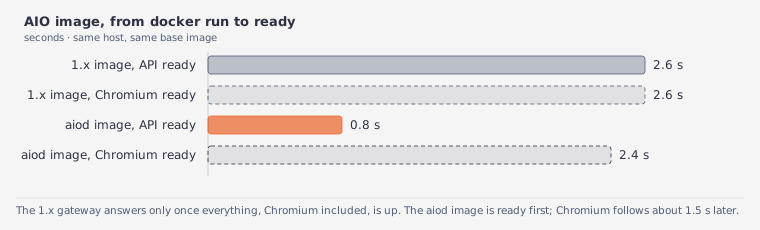
在 AIO 镜像里,docker run 之后不到一秒 API 就绪,1.x 镜像大约要两秒半。Chromium 在后台继续启动,再过一秒半左右可用:
Chromium 需要放行 sandbox 的 seccomp profile,并使用更大的 /dev/shm。下面的命令已经配置好:
# AIO image
docker run --rm -it --security-opt seccomp=unconfined --shm-size 4g \
  -p 127.0.0.1:8091:8091 enterprise-public-cn-beijing.cr.volces.com/vefaas-public/aio-daemon:1.0.1
# Computer image — adds an XFCE desktop and the computer-use worker
docker run --rm -it --security-opt seccomp=unconfined --shm-size 4g \
  -p 127.0.0.1:8091:8091 enterprise-public-cn-beijing.cr.volces.com/vefaas-public/aio-computer:1.0.1
在任一镜像内部,nginx 监听 8091 —— 这是运行命令唯一发布的端口。它转发到:
aiod(18091,loopback)computer-use(18100)- Chromium 的 CDP(9222)
这三个端口都无法从沙箱外部直接访问。经网关可以访问:
- 完整 API
/docs 文档界面/vnc 的 noVNC/cdp/json/* 和 /cdp/devtools/* 的 CDP 端点
镜像专属的环境变量与默认值见 从 1.x 迁移。
Dashboard
可以通过 Dashboard 在浏览器中快速调试 daemon。
SDK
两个 SDK 使用 v1 路由(/v1/*)。如果要调用 v2,请直接使用 HTTP API,参见 API 参考。
v2 示例使用的 helper 定义在 示例首页的「约定」部分。
安装 SDK:
- Python:
pip install agent-sandbox
- TypeScript:
npm i @agent-infra/sandbox
使用 SDK 时,指定 daemon 地址。如果设置了 key,将它放入 headers;没有设置 key 时,省略 headers。
from aio import Aio  # the helper on the examples index

sb = Aio("http://127.0.0.1:18091")
sb.post("/v2/fs/write", path="/tmp/hello.txt", content="hi from aiod")
print(sb.get("/v2/fs/read", path="/tmp/hello.txt")["content"])
# hi from aiod

print(sb.post("/v2/commands", command="printf hello")["stdout"])
# hello
import { Aio } from "./aio"; // the helper on the examples index

const sb = new Aio("http://127.0.0.1:18091");
await sb.post("/v2/fs/write", { path: "/tmp/hello.txt", content: "hi from aiod" });
console.log((await sb.get("/v2/fs/read?path=/tmp/hello.txt")).content);
// hi from aiod

console.log((await sb.post("/v2/commands", { command: "printf hello" })).stdout);
// hello
from agent_sandbox import Sandbox

sandbox = Sandbox(
    base_url="http://127.0.0.1:18091",
    headers={"x-api-key": "<key>"},
)
import { SandboxClient } from "@agent-infra/sandbox";

const sandbox = new SandboxClient({
  environment: "http://127.0.0.1:18091",
  headers: { "x-api-key": "<key>" },
});
下面演示文件读写和命令执行:
sandbox.file.write_file(file="/tmp/hello.txt", content="hi from the SDK")
print(sandbox.file.read_file(file="/tmp/hello.txt").data.content)
# hi from the SDK

result = sandbox.bash.exec(command="printf hello")
print(result.data.stdout)
# hello
await sandbox.file.writeFile({ file: "/tmp/hello.txt", content: "hi from the SDK" });
const read = await sandbox.file.readFile({ file: "/tmp/hello.txt" });
console.log(read.body.data?.content);
// hi from the SDK

const result = await sandbox.bash.exec({ command: "printf hello" });
console.log(result.body.data?.stdout);
// hello
Python SDK 还提供了 AsyncSandbox,通过 asyncio 暴露异步方法,接口与 Sandbox 相同。
SDK 兼容性说明见迁移页中的 1.x SDK 兼容性。
相关页面